
MasterSafe snapshots: your daily safety net and how to go back in time
MasterSafe keeps a copy of your vault every day. What the snapshots are, what they cannot do, and the exact steps to restore one on Windows and Linux.
You delete the wrong account, or a sync tool overwrites your vault with an older file, and you want yesterday's version back. MasterSafe Authenticator makes this possible without you doing anything: every day it keeps a copy of your vault, called a snapshot. This article explains what snapshots are, what they cannot protect you from, and how to restore one.
What a snapshot is
- A snapshot is a copy of your encrypted vault file,
vault.sauth. It is exactly as secret as the vault itself: it needs the same master password to open. - MasterSafe makes one before the first save of each day. So the snapshot with today's date holds the vault as it was at the end of yesterday, before today's changes.
- It keeps the last 7. The oldest is deleted when an eighth appears.
- They live in the
snapshotsfolder inside MasterSafe's data folder, namedvault-YYYYMMDD.sauth. The date is in UTC, so around midnight it can differ from your local date by a day. - Next to your vault there is also
vault.sauth.bak: the version before the last save. It protects against a crash during saving. A snapshot protects against a mistake you notice a day or two later.
What snapshots do not do
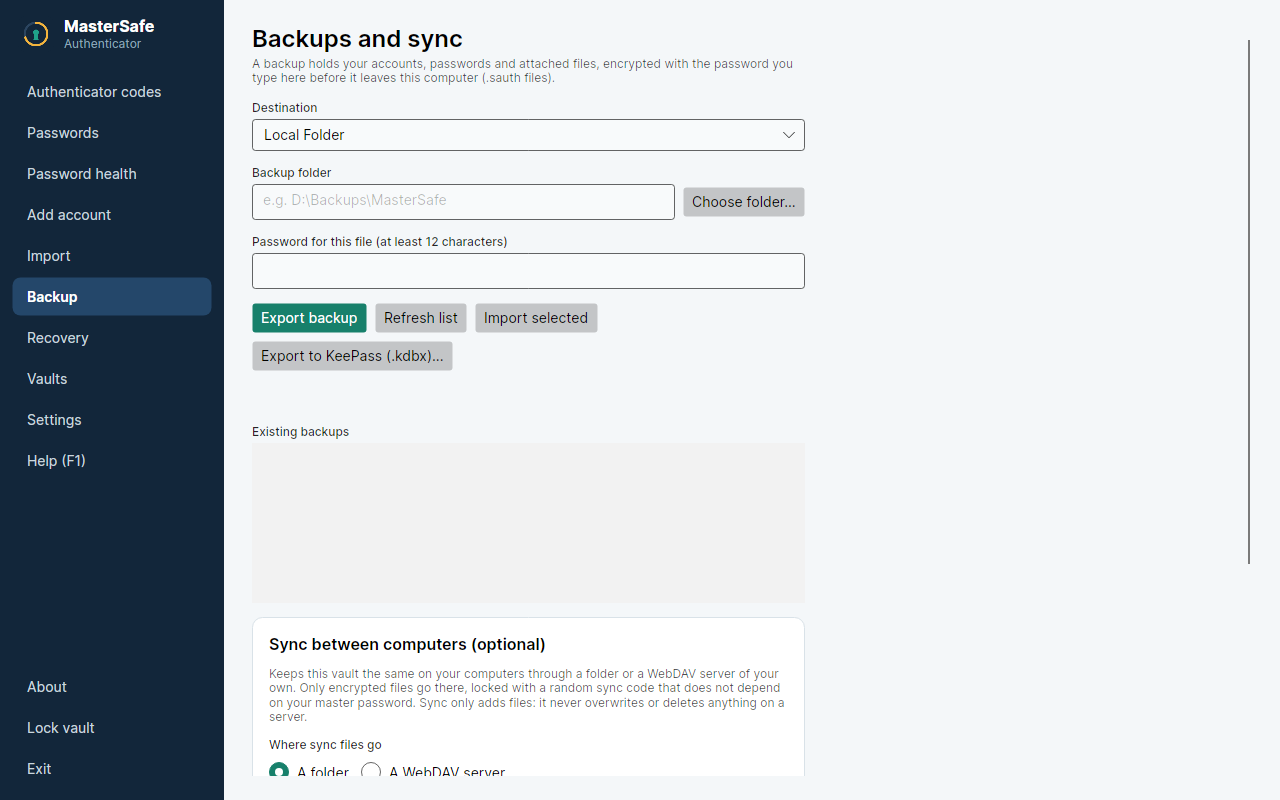
- They are not a backup. They sit on the same disk as the vault. If the disk fails, the computer is stolen or ransomware encrypts the folder, the snapshots go with it. For that, use the Backup page to make an encrypted backup on another disk or a USB stick.
- They disappear when you change the master password or remove an unlock method. This is on purpose: an old copy would still open with the old password or key that you wanted to stop using.
- They are only made for the vault in MasterSafe's own folder. A vault that you opened from a USB stick with "Open a vault file" is left where it is, and no snapshots are made of it.
- They have no "restore" button yet. Restoring is a file copy, as shown below.
Restoring a snapshot
Everything you added or changed after the snapshot is gone from the restored vault, so look at the dates before you pick one.
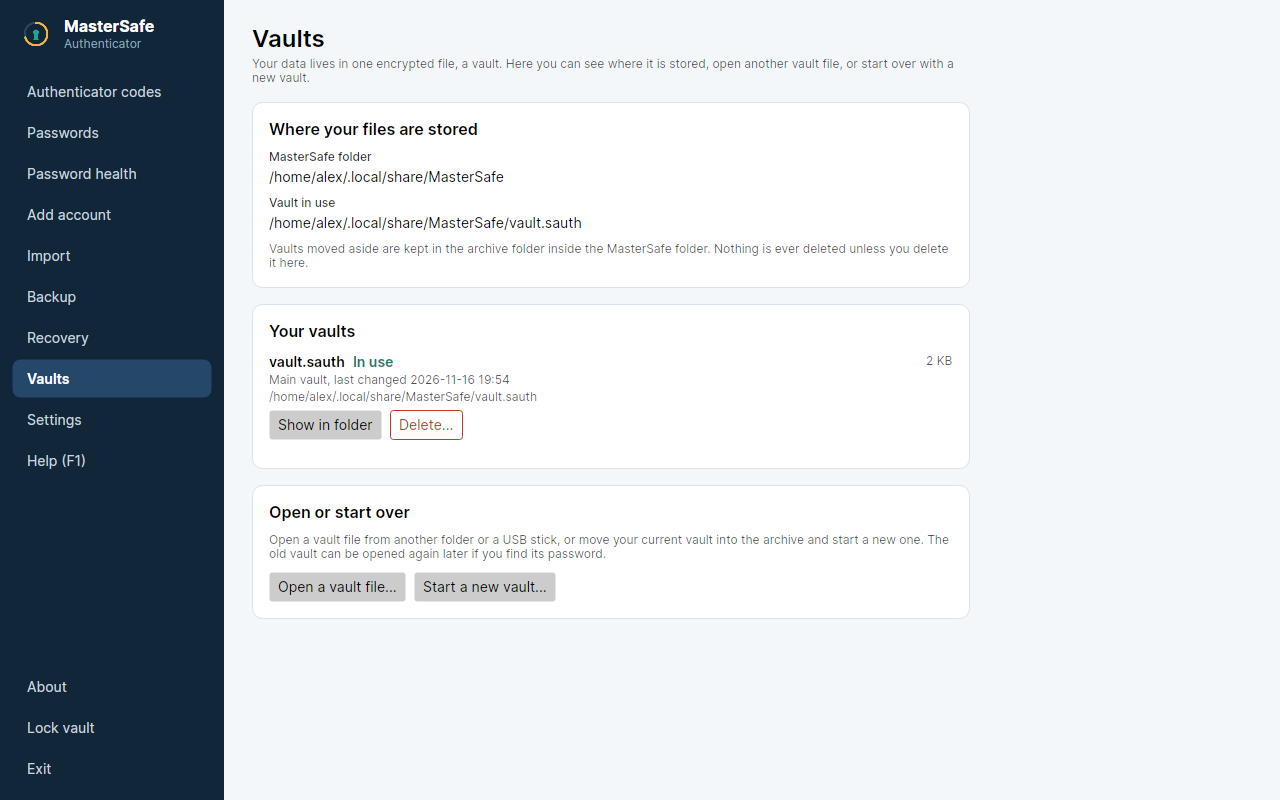
%LocalAppData%\MasterSafe.)- Close MasterSafe completely. Choose Exit in its tray menu; closing the window can leave it running in the tray. Only one copy can run, and it must not be running while you replace its file.
- Open the data folder and look at the snapshots:
- Windows:
%LocalAppData%\MasterSafe - Linux:
~/.local/share/MasterSafe(in a Flatpak:~/.var/app/io.github.GabrielVergara.MasterSafeAuthenticator/data/MasterSafe)
- Windows:
- Keep the current vault by renaming it, so you can go back if the snapshot is not what you wanted. In PowerShell on Windows:
On Linux:cd $env:LOCALAPPDATA\MasterSafe dir snapshots Rename-Item vault.sauth vault.sauth.before-restore Copy-Item snapshots\vault-20261115.sauth vault.sauth
Use the file name of the snapshot you chose. Copy it; do not move it, so the snapshot stays as a second chance.cd ~/.local/share/MasterSafe ls snapshots mv vault.sauth vault.sauth.before-restore cp snapshots/vault-20261115.sauth vault.sauth chmod 600 vault.sauth - Start MasterSafe and sign in with your master password. A security key or Windows Hello added after the snapshot was made will not open the old copy; use the password.
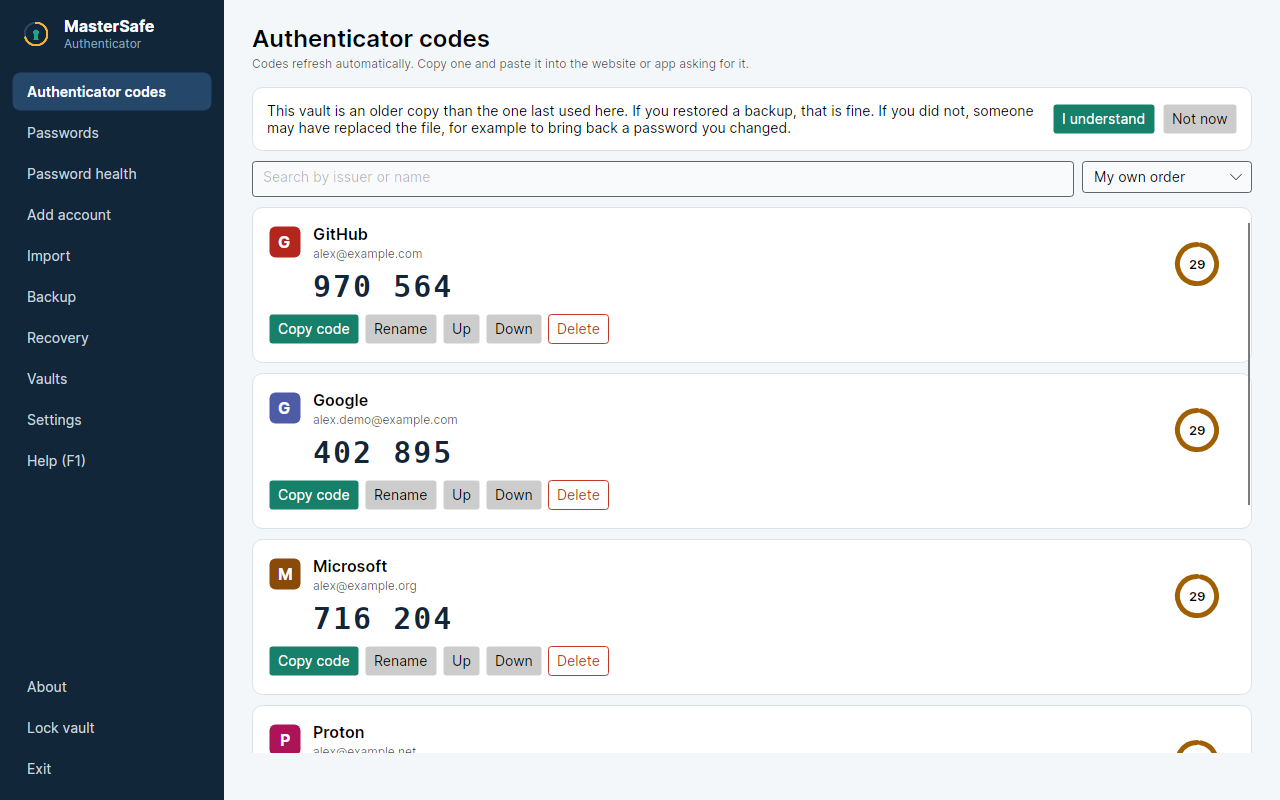
- Expect one warning. The codes page says the vault is an older copy than the one last used on this computer. MasterSafe notices this on purpose, because someone could swap in an old file to bring back a password you changed. If you restored it yourself, it is fine, and the warning is only a warning: nothing is blocked.
When you are sure the restored vault is right, you can delete vault.sauth.before-restore. Until then, leave it.
Habits that make it work
- Notice early. A mistake is easiest to undo within a week, while the right snapshot still exists.
- Make a real backup too. Snapshots for yesterday's mistake, an encrypted backup on another disk for the day the disk dies. See the Backup page in the app.
- Test it once on a vault you do not care about, so the first time you restore is not the day you are worried.
- Do not edit the folder by hand otherwise. Leave
settings.jsonand the other files as they are.
MasterSafe Authenticator is described in its main article; the list of every file it keeps is in FileLocations.md (opens in a new tab).
New to MasterSafe? Start with the guided tour.