
The MasterSafe recovery key: on paper, in 3 parts, and how to get your data back
Nobody can reset a forgotten master password. The recovery key is the way back. How to make it, how to keep it on paper or split into 3 parts so one lost USB stick is not the end, and how to restore.
MasterSafe Authenticator encrypts your vault with your master password. That is what keeps it safe, and it also means nobody can reset the password for you: not me, not the app, not a support line. If you forget it, the recovery key is the way back. This article explains what it is, how to keep it so it survives a lost USB stick, and how to use it. Version 1.8 adds two new ways to keep it: on paper and in 3 parts.
How recovery works
There are three pieces, and you need all three on the day you restore:
- The recovery key, a small file (
.msrk). It is locked with its own passphrase. - The passphrase of the key, at least 12 characters. Write it on paper and keep it apart from the key.
- A recovery backup (
recovery-....sauth), with your accounts, passwords, folders and attached files. It is locked so that only the recovery key opens it, so it can be kept anywhere, even in the cloud.
Making a recovery backup needs only the public half of the key, which the app keeps. That is why MasterSafe can write a new one by itself after every change without asking for the passphrase. The backups use a hybrid scheme, ML-KEM-768 with ECDH P-384, so they stay protected even against future quantum computers.
Set it up once
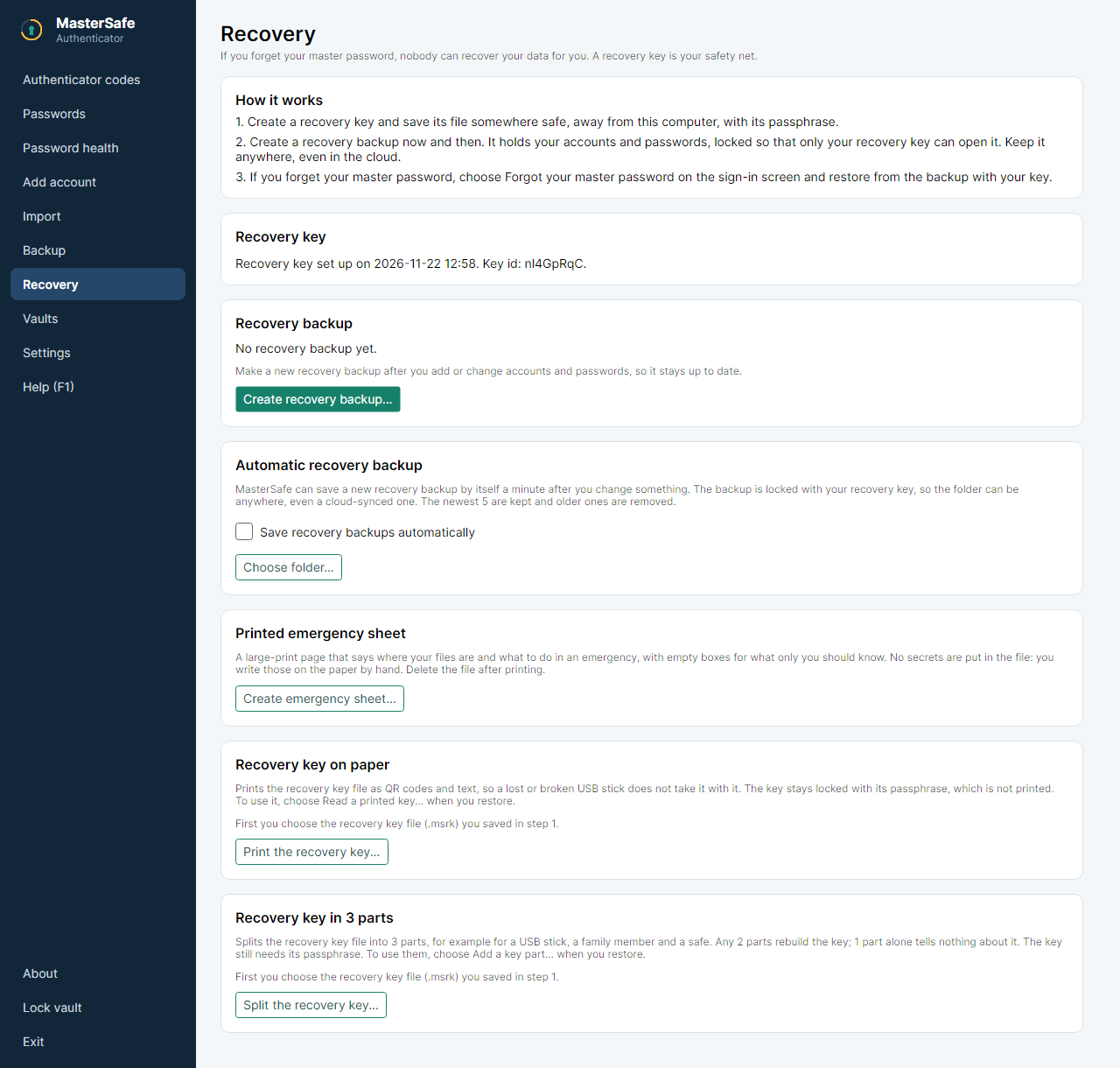
- Open Recovery and choose Create recovery key automatically.... MasterSafe chooses a strong passphrase, asks where to save the key file and shows the passphrase once. Write it down now.
- Choose Create recovery backup....
- Turn on Save recovery backups automatically and choose a folder on a USB stick or in a cloud folder. The newest five are kept.
The weak spot: one USB stick
Many people keep the key file on a single USB stick. USB sticks break, get lost and go through the washing machine. Version 1.8 gives the key a second home, in one of two ways or both.
On paper
Print the recovery key... saves a page that you open in a browser and print. It holds the key as a few QR codes, and the same pieces again as text in groups of five characters, for a code that a camera cannot read. Then delete the file.
- The paper holds the key locked with its passphrase. The passphrase is not printed. Someone who photographs the page still needs it.
- To use it, choose Read a printed key... when you restore and pick a photo or scan of each page. Several codes can be in one photo. Each piece has a check, so a typing mistake is pointed out piece by piece.
- Keep the paper somewhere other than the passphrase: for example the paper in a safe, the passphrase with a person you trust.
In 3 parts
Split the recovery key... saves 3 part files (.msrkpart). Any 2 of them rebuild the key. One part alone tells nothing about it, not even a few letters. Keep them in three places, for example your USB stick, a family member and a safe deposit box. Then:
- Losing one part costs nothing: the other two still work.
- A thief who finds one part has nothing. With two parts they would have the key, and still need the passphrase.
- The method is Shamir's secret sharing, a well-known method from 1979. MasterSafe checks the rebuilt key, and if a part is damaged or belongs to another key it says which one.
Both buttons first ask for the key file you saved when you created the key. That window is for choosing an existing .msrk file, not for saving a new one.
The day you need it
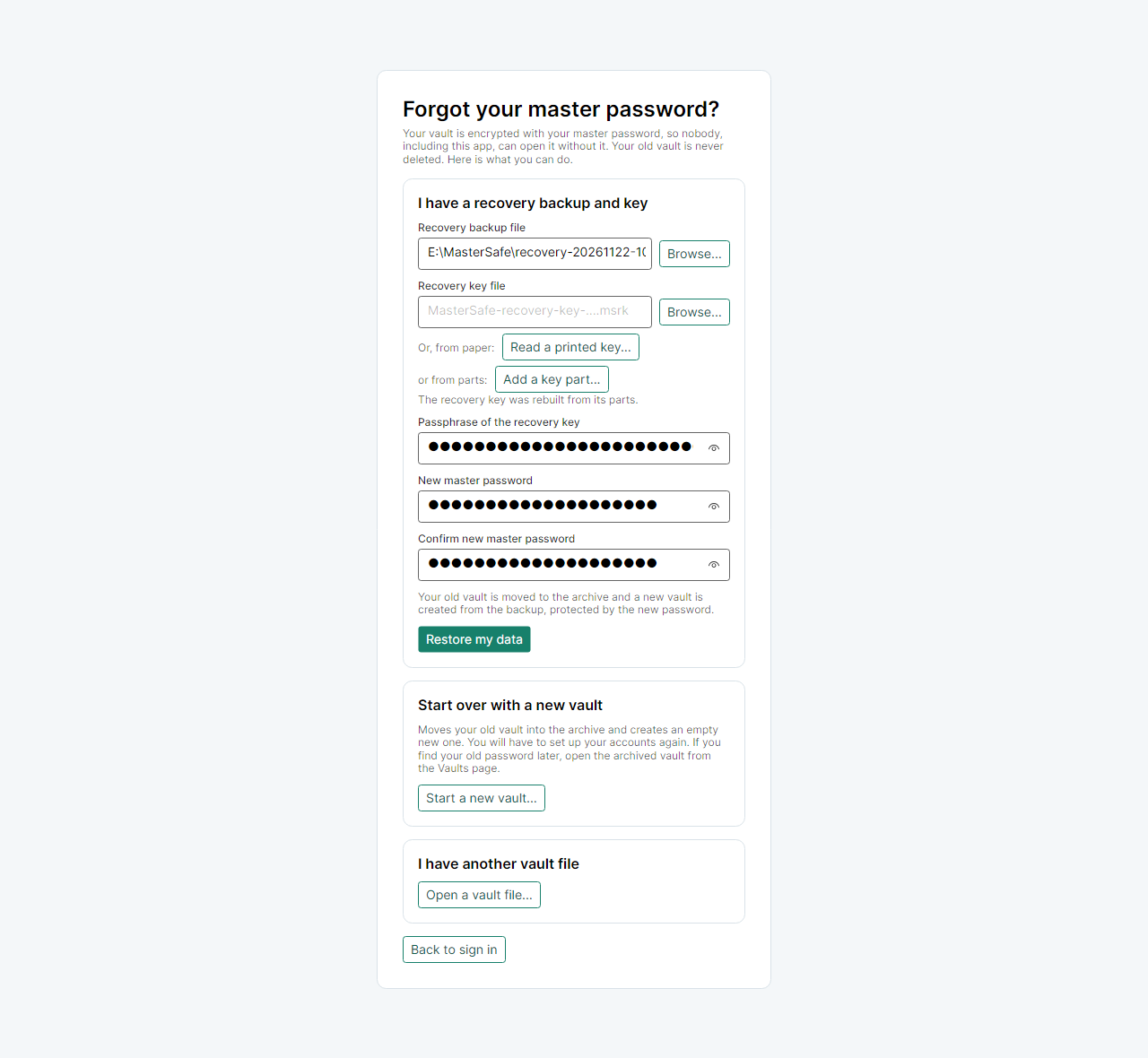
- On the sign-in screen choose Forgot your master password?, then Restore from a recovery backup....
- Choose the newest
recovery-....sauth. - Give the key in any of three ways: the key file, Read a printed key..., or Add a key part... twice.
- Type the passphrase, choose a new master password and choose Restore my data.
Your old vault is not deleted; it goes to the archive. If the old password comes back to you, you can still open it from the Vaults page.
Honest limits
- Without the passphrase, nothing helps. Paper and parts protect the key file, not the passphrase. Keep the passphrase written down.
- A backup only has what was in the vault when it was made. Turn on the automatic backup so it stays up to date.
- A new recovery key does not open old backups. If you replace the key, make a new backup and keep the old key until you no longer need the old backups.
- Try it once, with a test vault, so the first time you restore is not the day you are worried.
The manual shows every step with pictures. For going back to yesterday's version of your vault instead, see daily copies.