

MasterSafe Authenticator manual
What each part of the app is for and how to use it, step by step. The pictures are the real app with made-up data; the app also speaks Spanish and Finnish (Settings, Language).
This manual describes version 1.8. Contents:
- Signing in and the help
- Preparing for a forgotten master password
- Restoring when you forgot the master password
- Going back to yesterday: daily copies
- Folders
- Password health and the security check-up
- More help
1. Signing in and the help
Each time MasterSafe starts it asks for your master password. Nobody can reset it, not even the app, because your vault is encrypted with it.
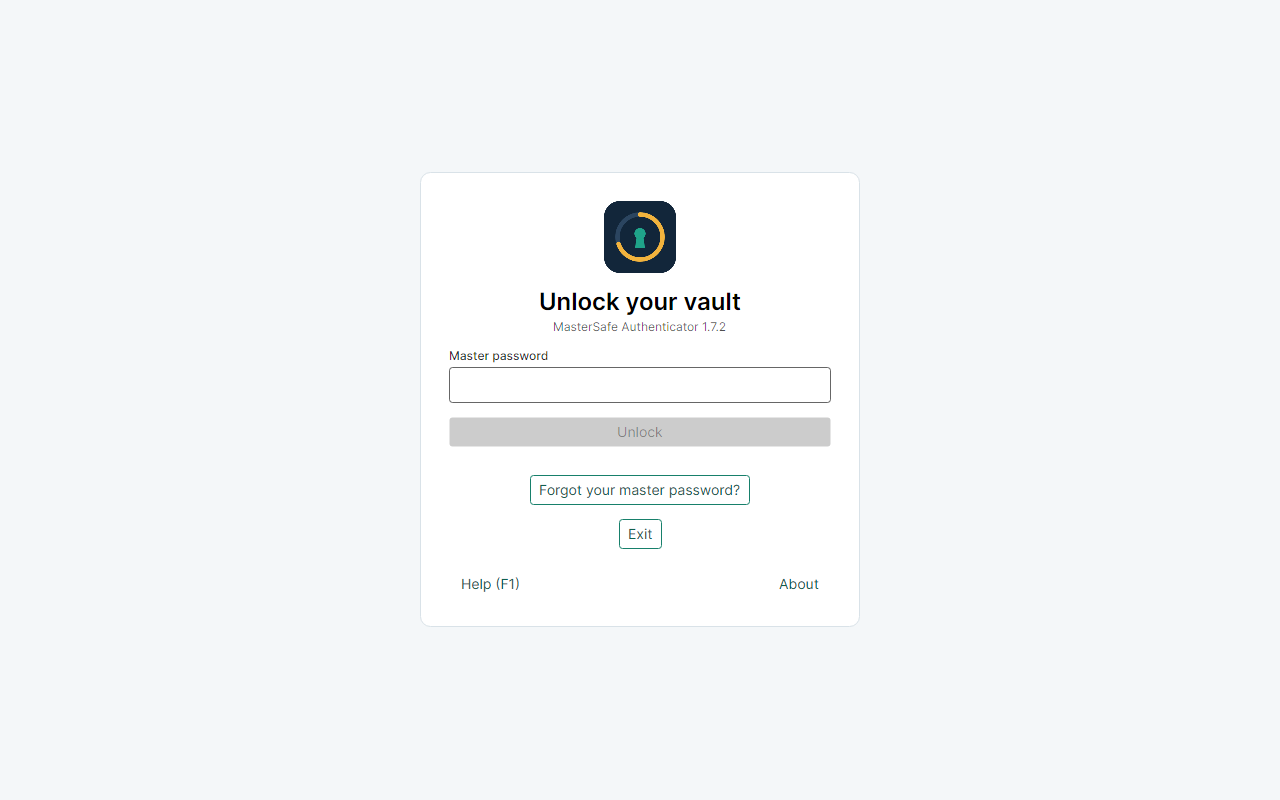
- Help (F1) opens the help without unlocking. It holds no data from your vault. Press F1 again, or choose Back to sign in, to return.
- About shows the version, the licence and the links to the project.
- Forgot your master password? leads to restoring, see section 3.
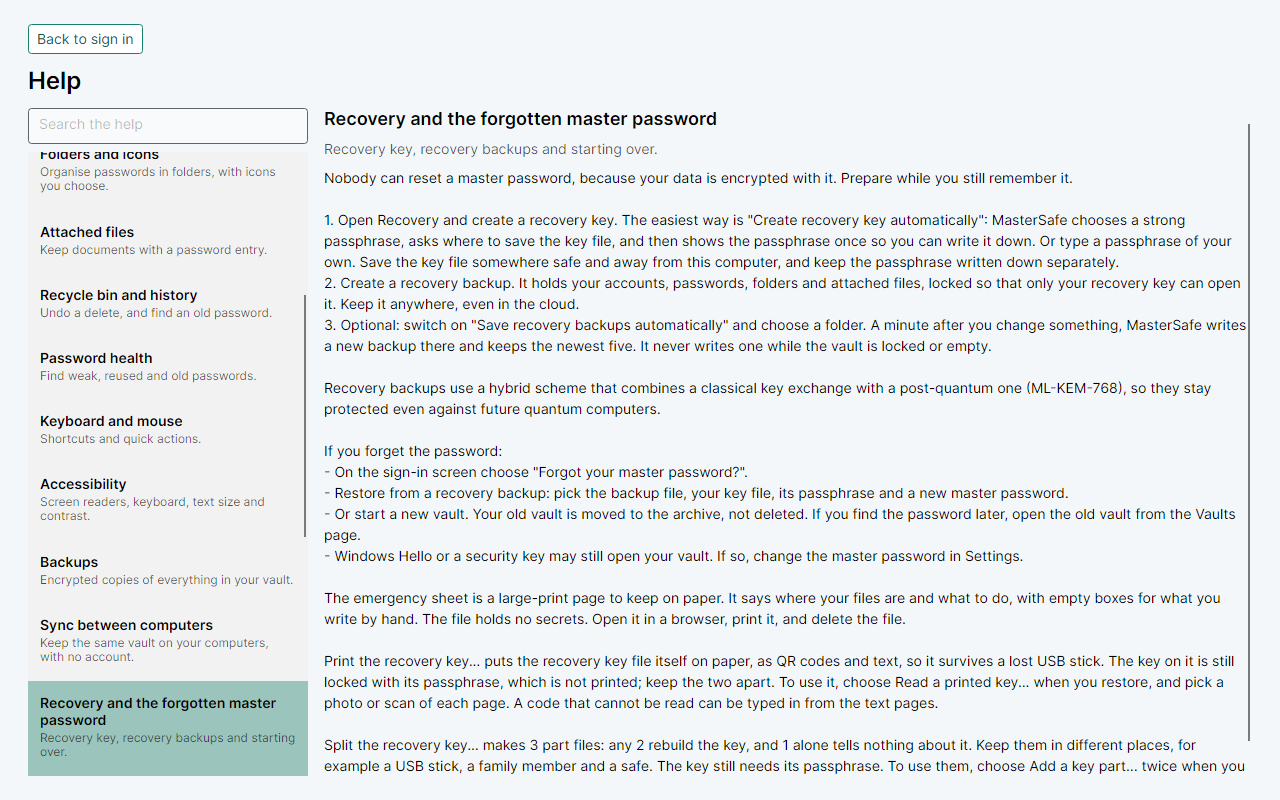
2. Preparing for a forgotten master password
Do this once, on the Recovery page, while you still know your master password.
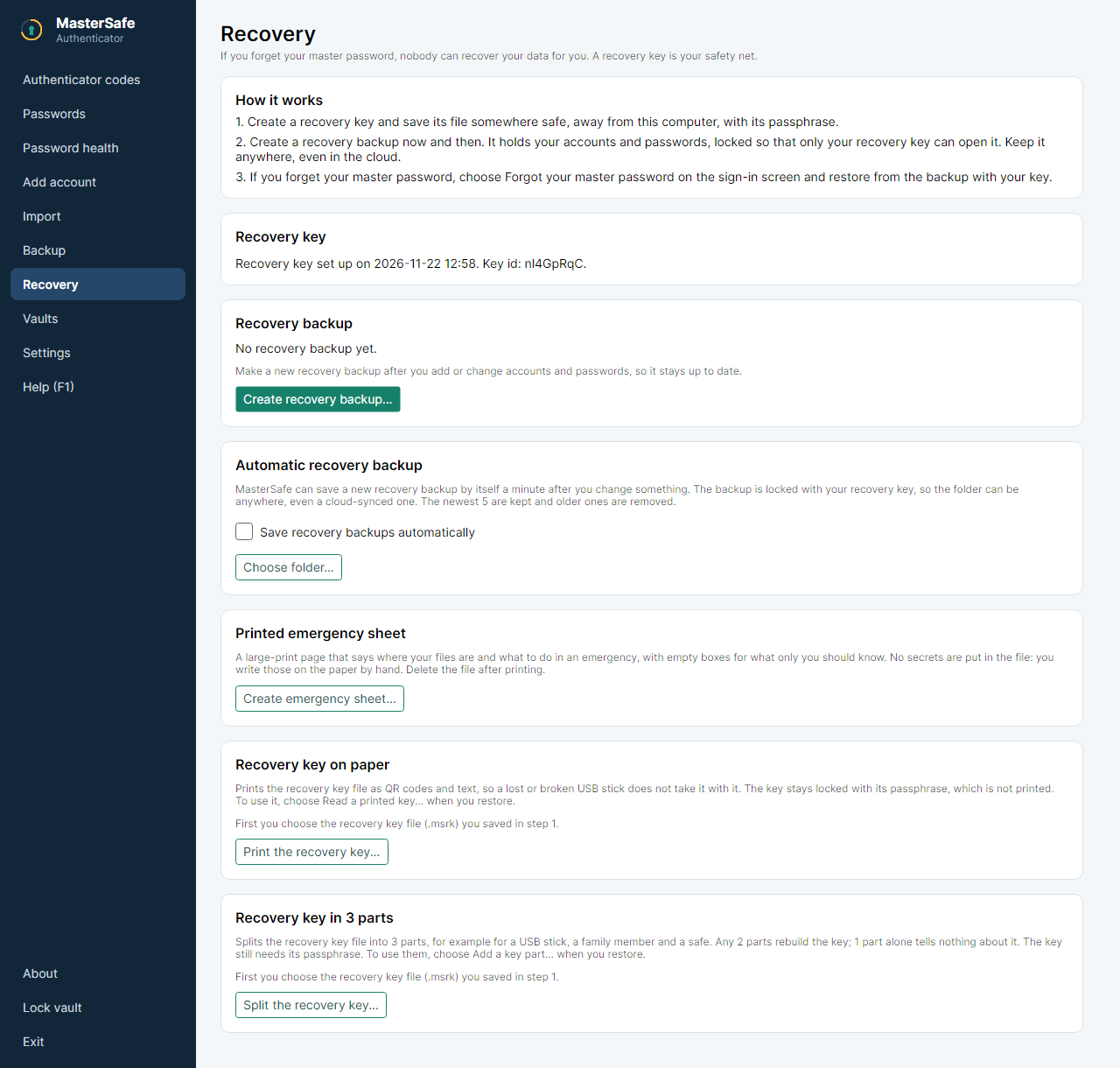
- Create the recovery key. The easiest way is Create recovery key automatically...: MasterSafe chooses a strong passphrase, asks where to save the key file (
.msrk) and shows the passphrase once. Write the passphrase on paper and keep it apart from the key file. - Create a recovery backup. It holds your accounts, passwords, folders and attached files, locked so that only your recovery key can open it. It can be kept anywhere, even in the cloud.
- Turn on the automatic recovery backup and choose a folder, best on a USB stick or a cloud folder. A minute after each change MasterSafe writes a new backup there and keeps the newest five.
- Keep a second copy of the key. A USB stick can break or get lost. Choose one, or both:
- Print the recovery key... saves a page with the key as QR codes and as text. Open it in a browser, print it and delete the file. The passphrase is not on the paper.
- Split the recovery key... saves 3 part files. Any 2 parts rebuild the key; 1 part alone tells nothing about it. Keep them in three places, for example a USB stick, a family member and a safe. The passphrase is still needed.
3. Restoring when you forgot the master password
You need a recovery backup (recovery-....sauth), the recovery key (the file, the printed page or 2 of the 3 parts) and the key's passphrase.
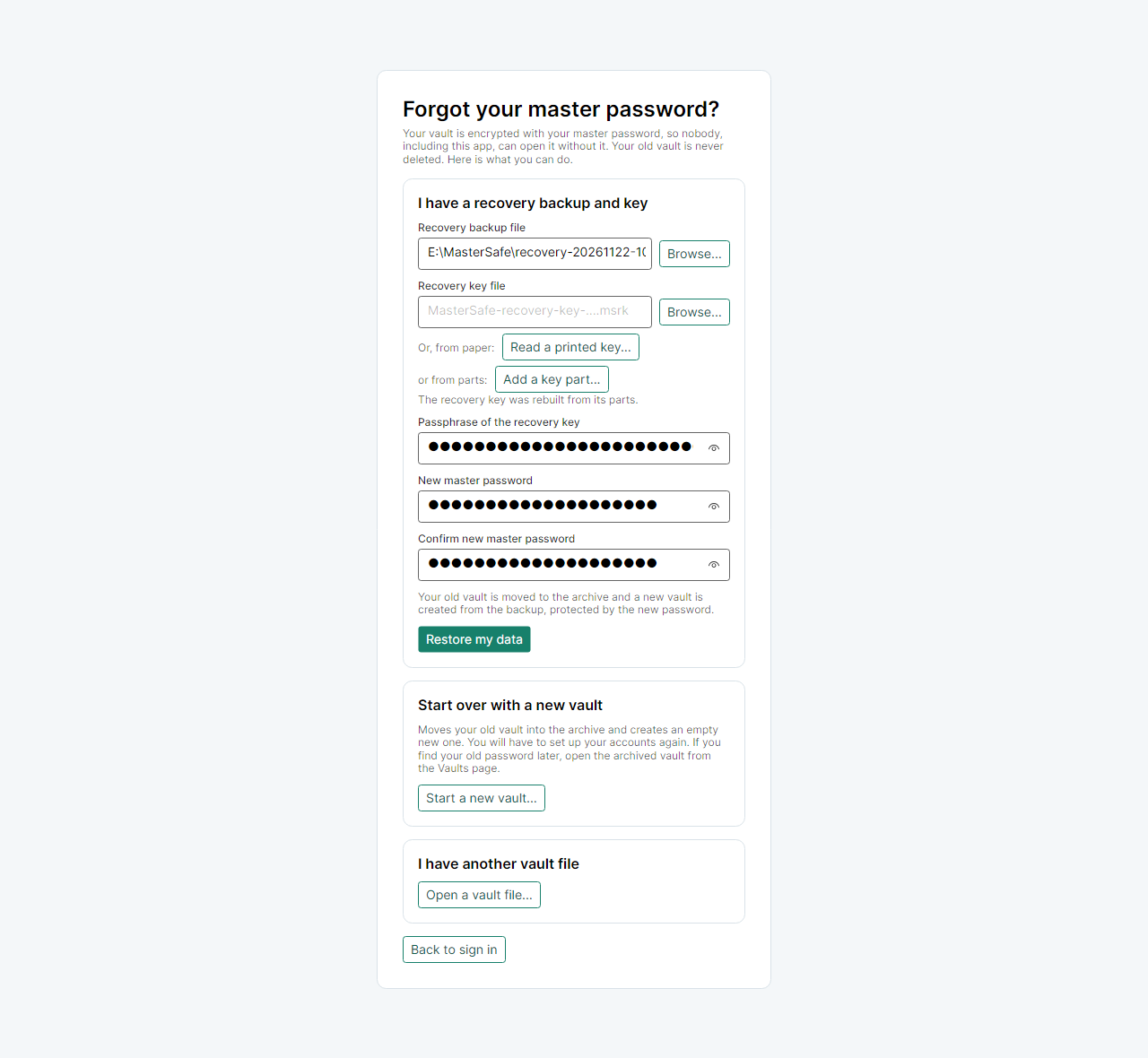
- On the sign-in screen choose Forgot your master password?, then Restore from a recovery backup....
- Recovery backup file: choose Browse... and pick the newest
recovery-....sauth. - The key, in one of three ways:
- the key file: Browse... next to Recovery key file;
- the printed page: Read a printed key... and pick a photo or scan of each page. A code that cannot be read can be typed from the text pages;
- the parts: Add a key part... twice, once for each part. The panel says when the key was rebuilt.
- Type the passphrase of the recovery key.
- Type a new master password twice and choose Restore my data.
The old vault is not deleted: it is moved to the archive. If the old password turns up, you can open it from the Vaults page. If something is missing, the message appears under the Restore my data button.
4. Going back to yesterday: daily copies
MasterSafe keeps a copy of the vault from each of the last 7 days it changed. If you deleted something by mistake, go back to an earlier day.
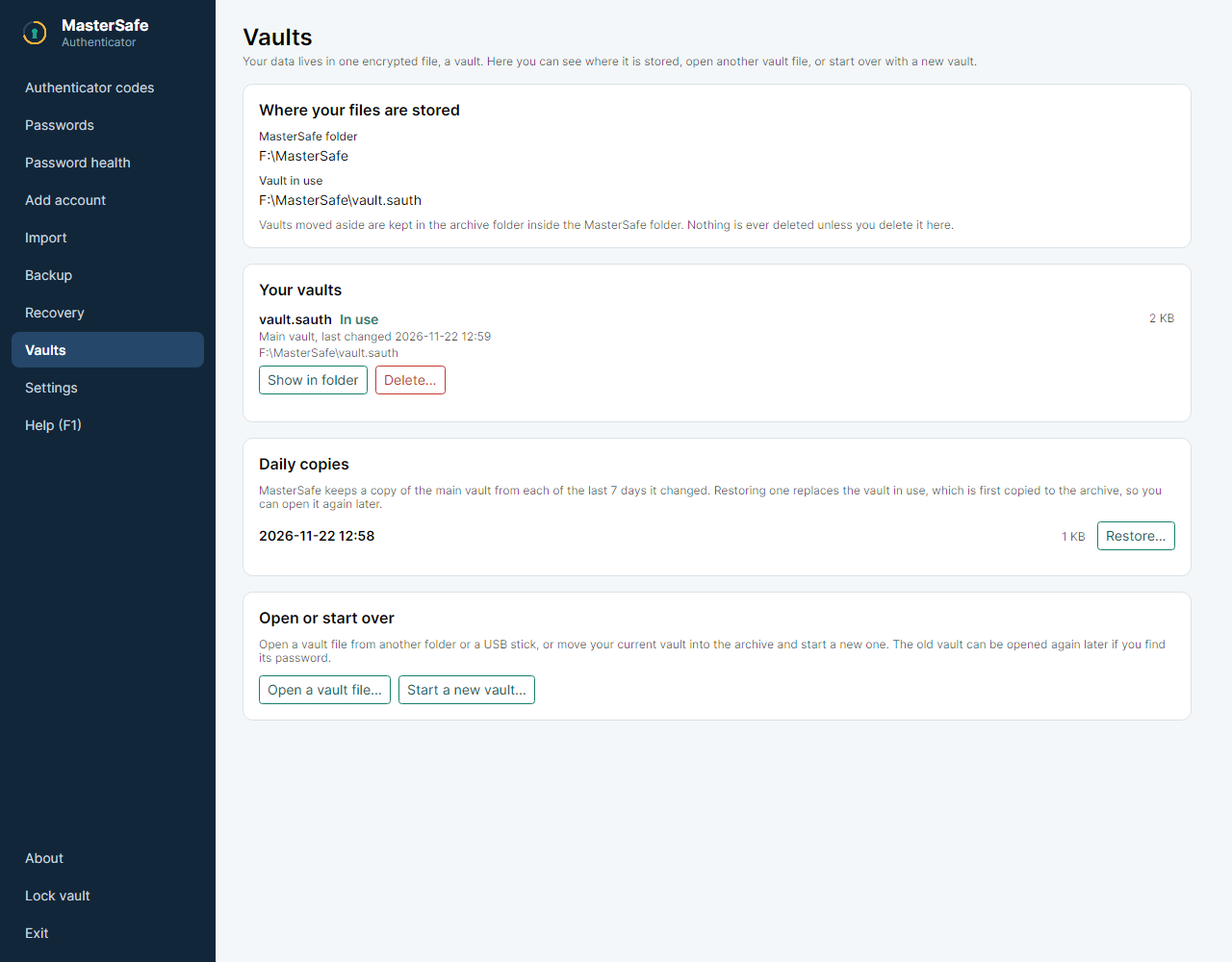
- Open Vaults and find Daily copies.
- Choose Restore... next to the day you want and confirm.
- The vault in use is first copied to the archive, then the copy replaces it and the vault locks.
- Sign in with the master password that the copy had.
Everything changed after that day is not in the restored vault; it is still in the archived copy. More in the article about daily copies.
5. Folders
On the Passwords page the folder list is on the left.
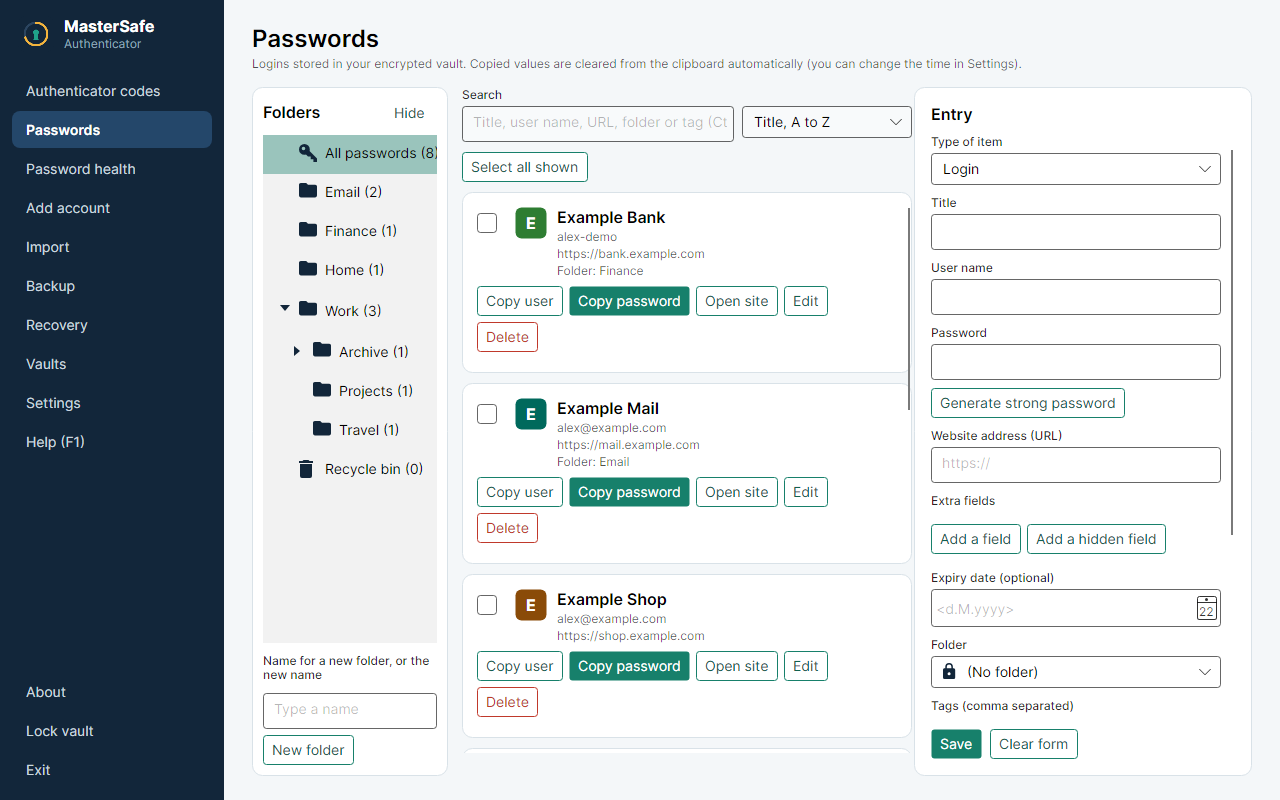
- New folder: type a name under the list and choose New folder. A folder selected first gets the new one inside it.
- Open and close: the small arrow in front of a folder hides or shows its subfolders.
- Hide removes the whole list so the passwords get the full width; Show folders above the search brings it back.
- Drag passwords onto a folder to move them. Right-click a folder to rename it, change its icon or delete it.
- Drag the edge of the list to make it wider; double-click the edge to fit it to the names again.
6. Password health and the security check-up
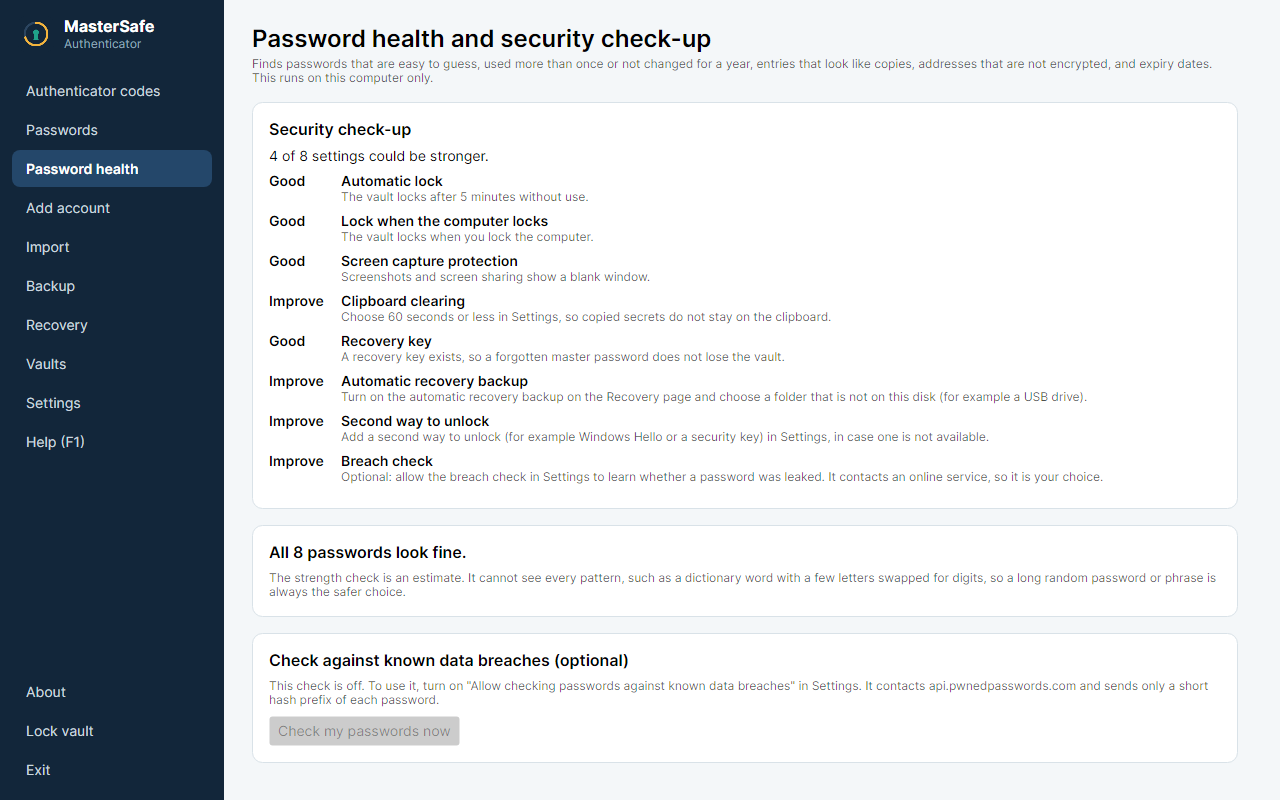
- Security check-up looks at your settings: automatic lock, clipboard clearing, recovery key, a second way to unlock and others. Each Improve says what to change and where.
- Passwords are checked for being easy to guess, used more than once, old, or for addresses that are not encrypted.
- The breach check is optional and off by default. When you allow it in Settings, only a short prefix of a hash of each password is sent.
Pages and cards grow with the window up to a comfortable reading width, so maximising the window gives them more room.
7. More help
- In the app: Help (F1), with a search box.
- For beginners: the guided tour.
- About the app and its security: MasterSafe Authenticator.
- A problem or an idea: GitHub (opens in a new tab). A security problem: report it privately (opens in a new tab).